This guide walks you through the stages: downloading dependencies, selecting your input and output, choosing your transcription and summary models, and viewing the results.
Applies to the desktop app video2text v2.6.3.
1. Download dependencies
On first launch, video2text needs to fetch its local runtime dependencies (the transcription engine and models). This happens once.
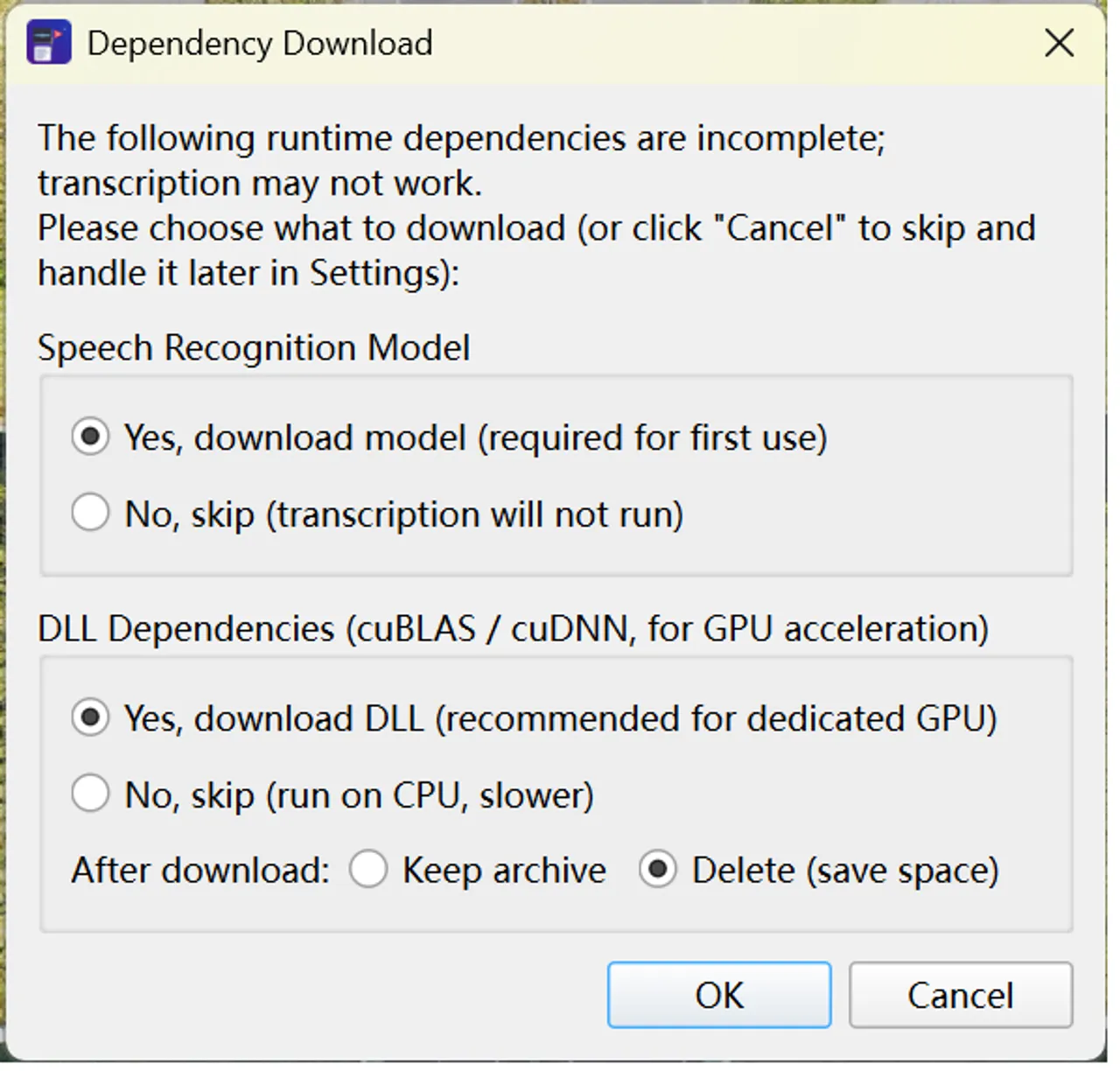
Confirm the download
When prompted, confirm that you want to download the required dependencies.
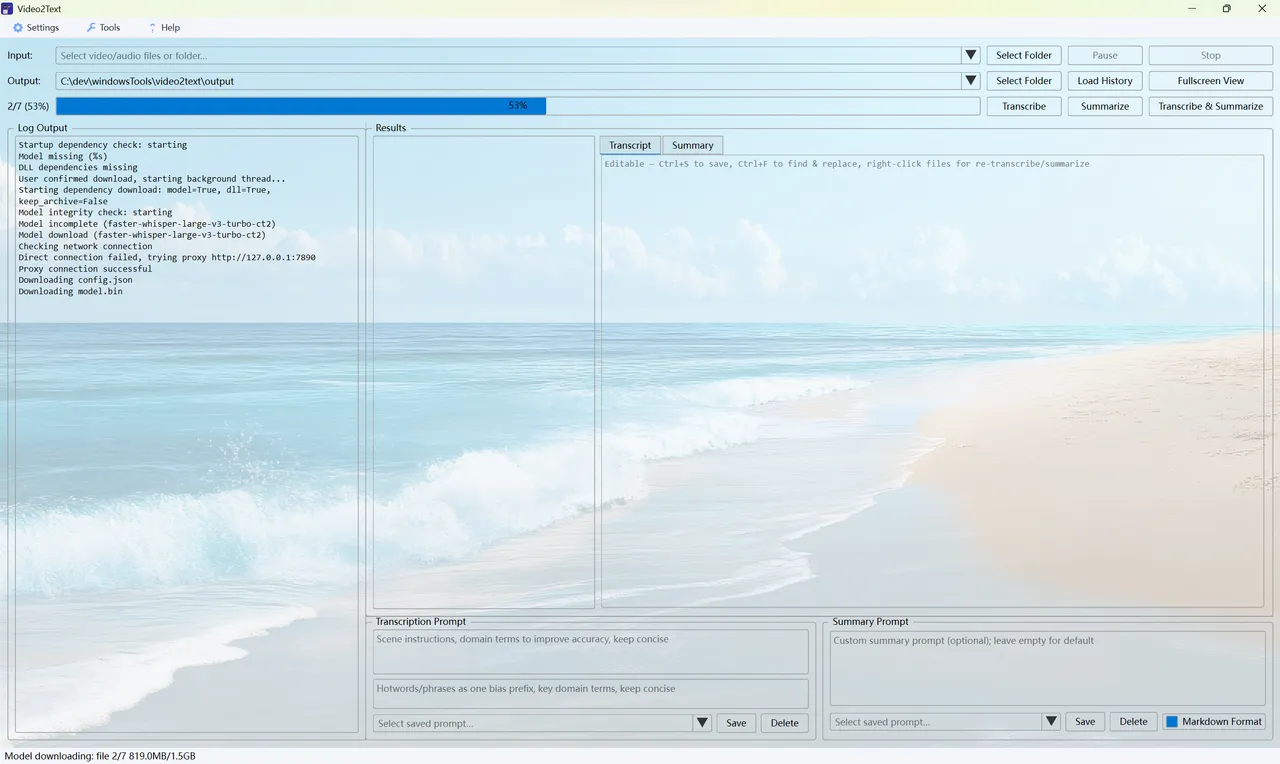
Download in progress
Wait while the dependencies are downloaded. Progress is shown in the interface.
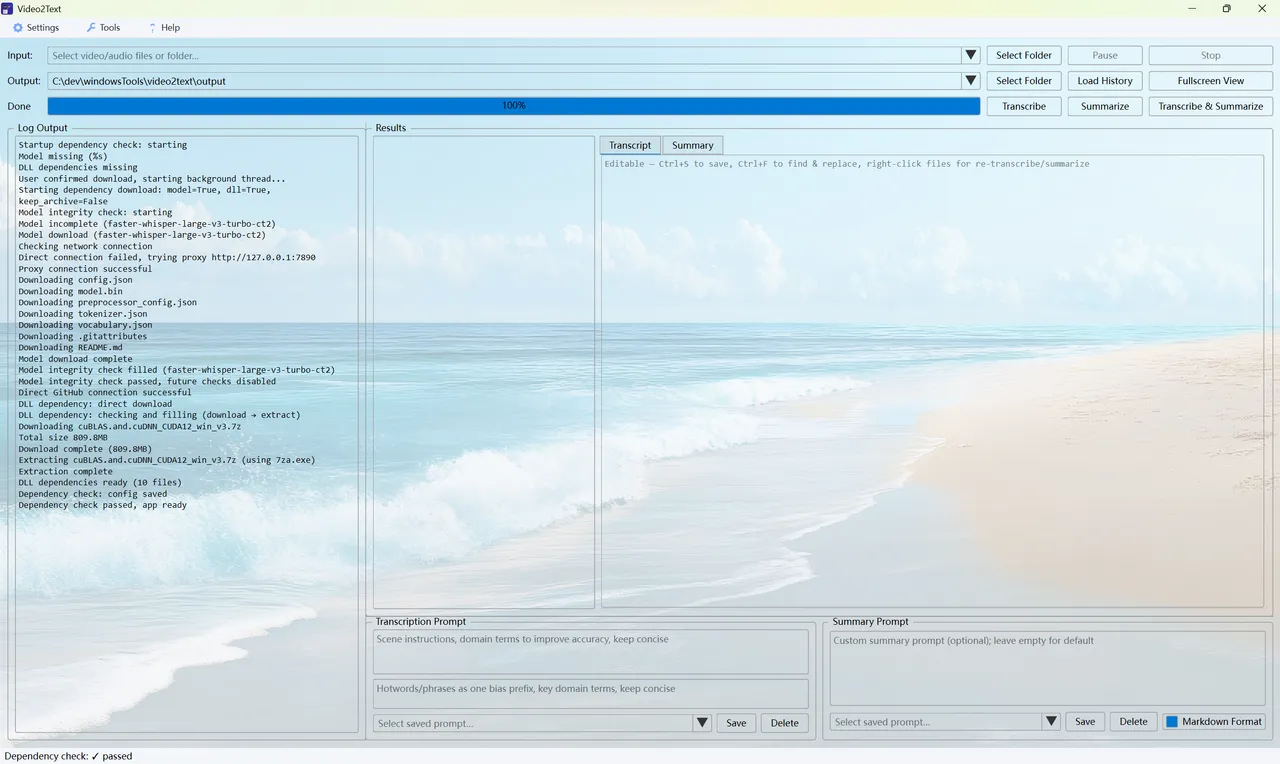
Download complete
Once the download finishes successfully, you are ready to transcribe.
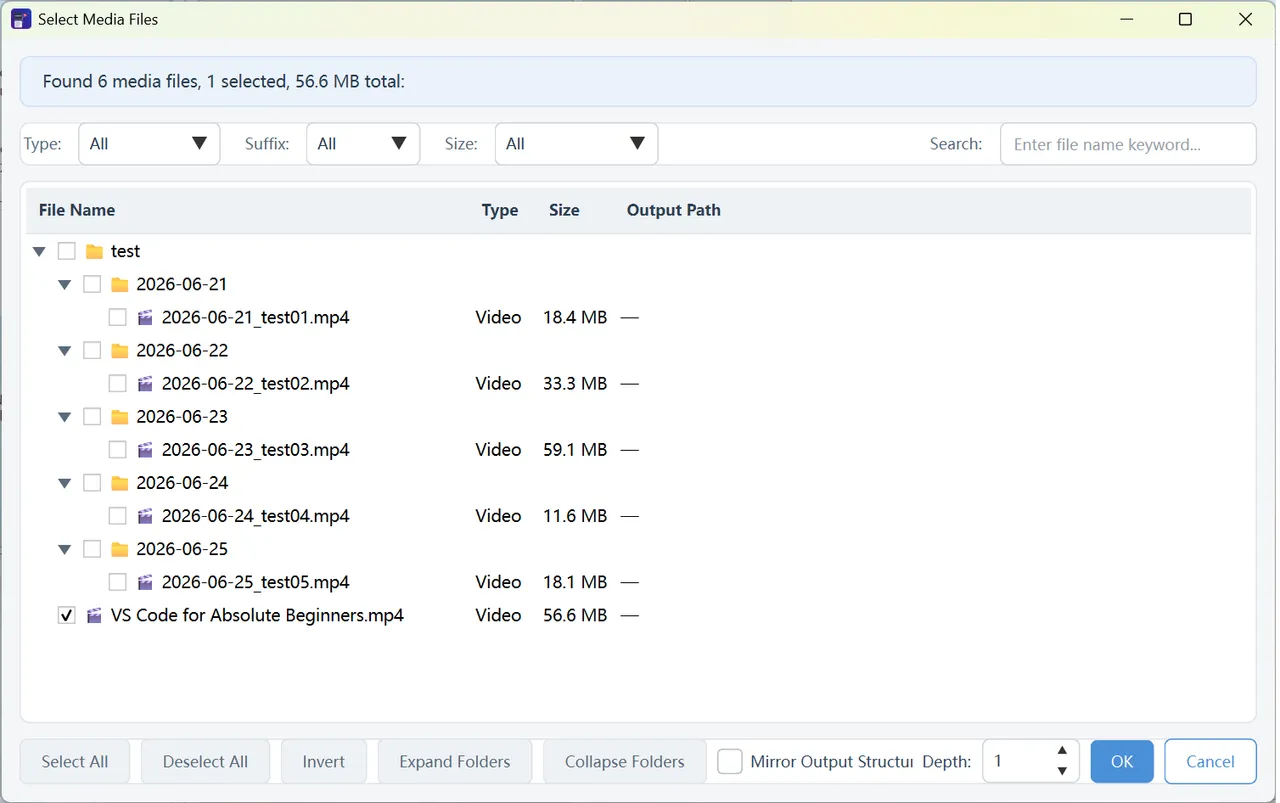
2. Select the input file and output directory
Choose the media you want to process and where the results should be saved.
3. Choose the transcription and summary models
Next, select the models to use for transcription and summarization.
The transcription model defaults to faster-whisper-large-v3-turbo-ct2. If you want to switch to a different model, see the other documentation articles.
This walkthrough uses an online model for the demonstration. If you prefer to run a local model via Ollama, please refer to the other articles or the Ollama documentation for setup details.
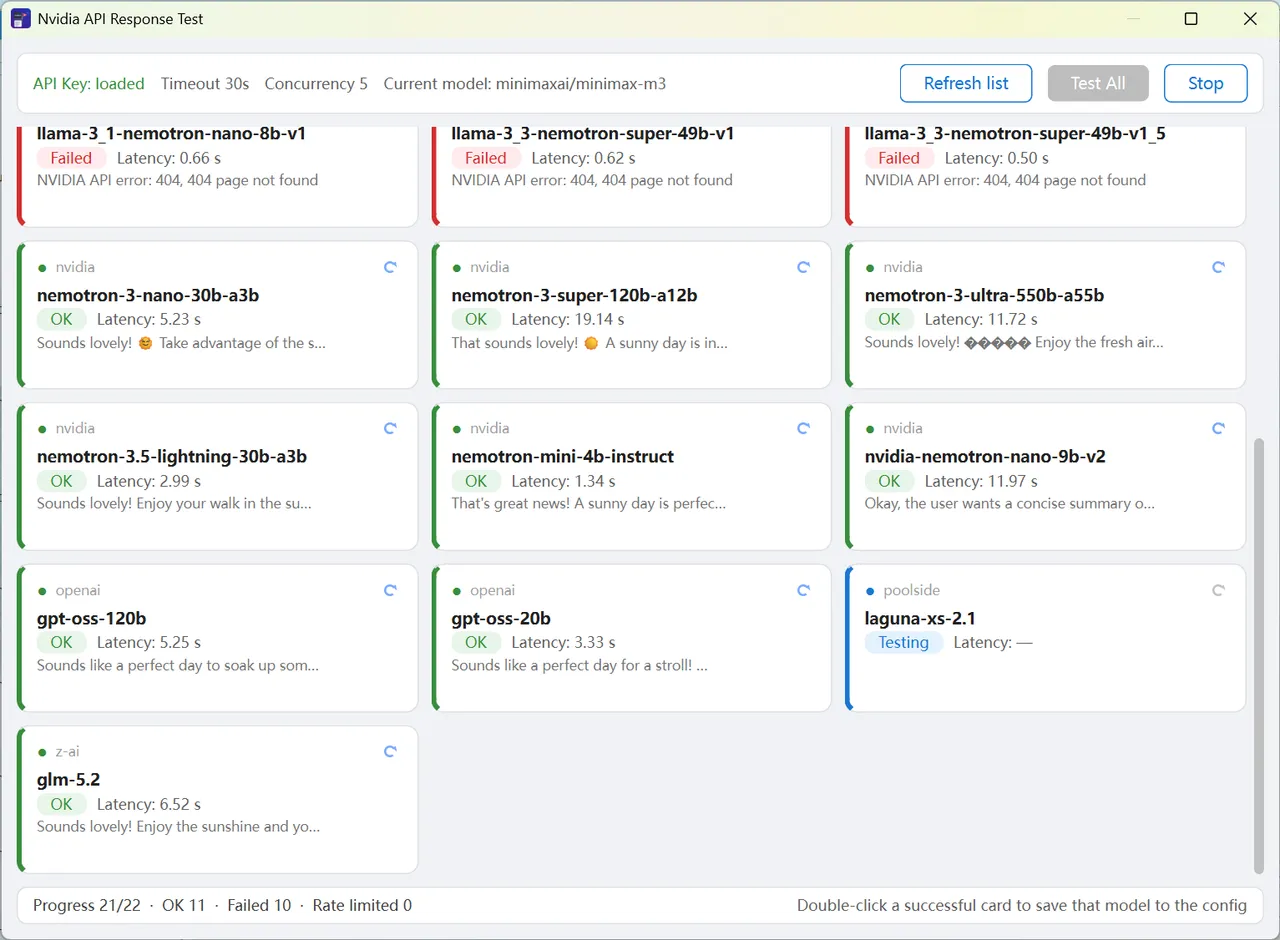
Test available NVIDIA API models
If you use an online provider, you can test which NVIDIA API models are available before running.
Switch model provider
Switch the model provider (for example between local and an online API) to the one you want to use for transcription.
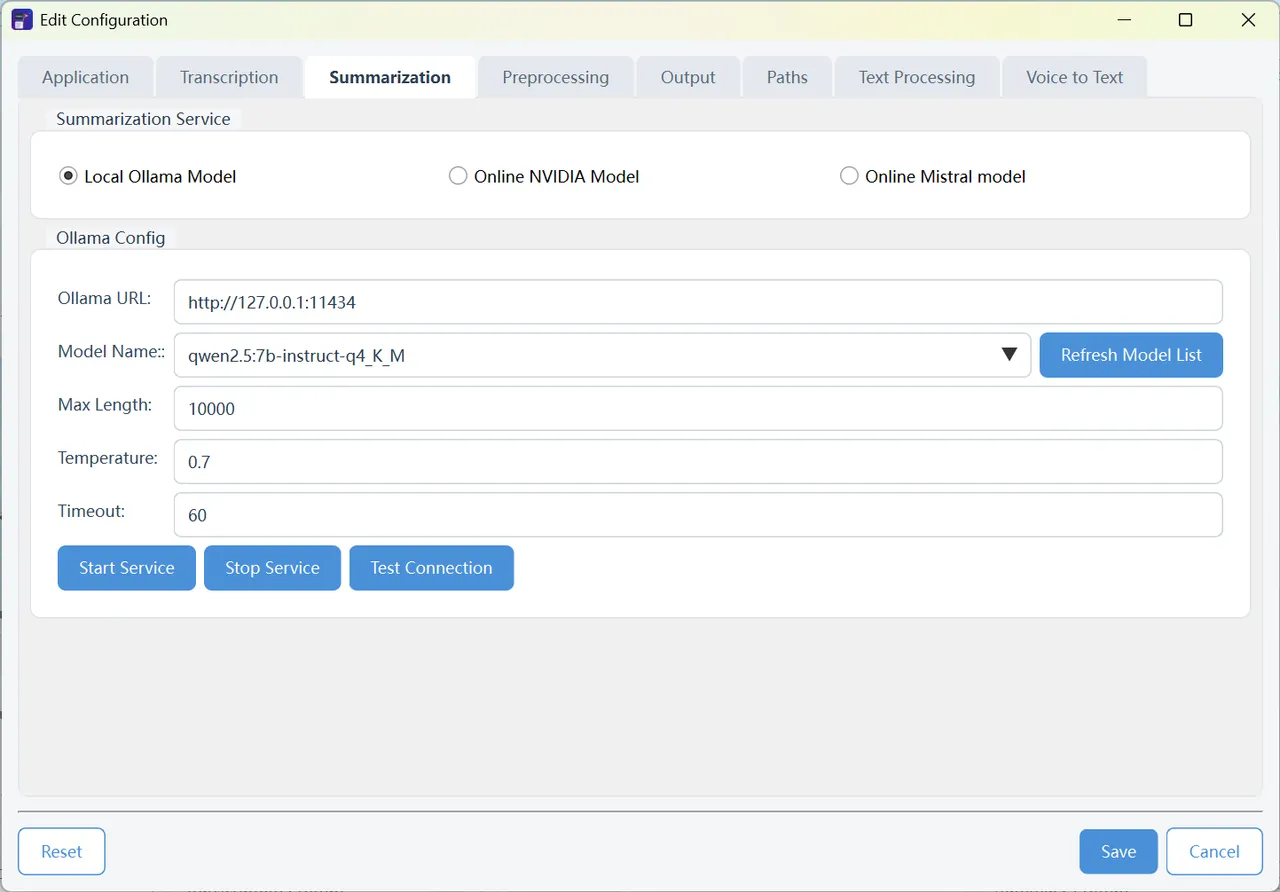
The summary model uses a sensible default, so there is no separate screenshot for it. You can change it in the same model settings if needed.
4. View the results
After processing, review both the transcription and the generated summary.
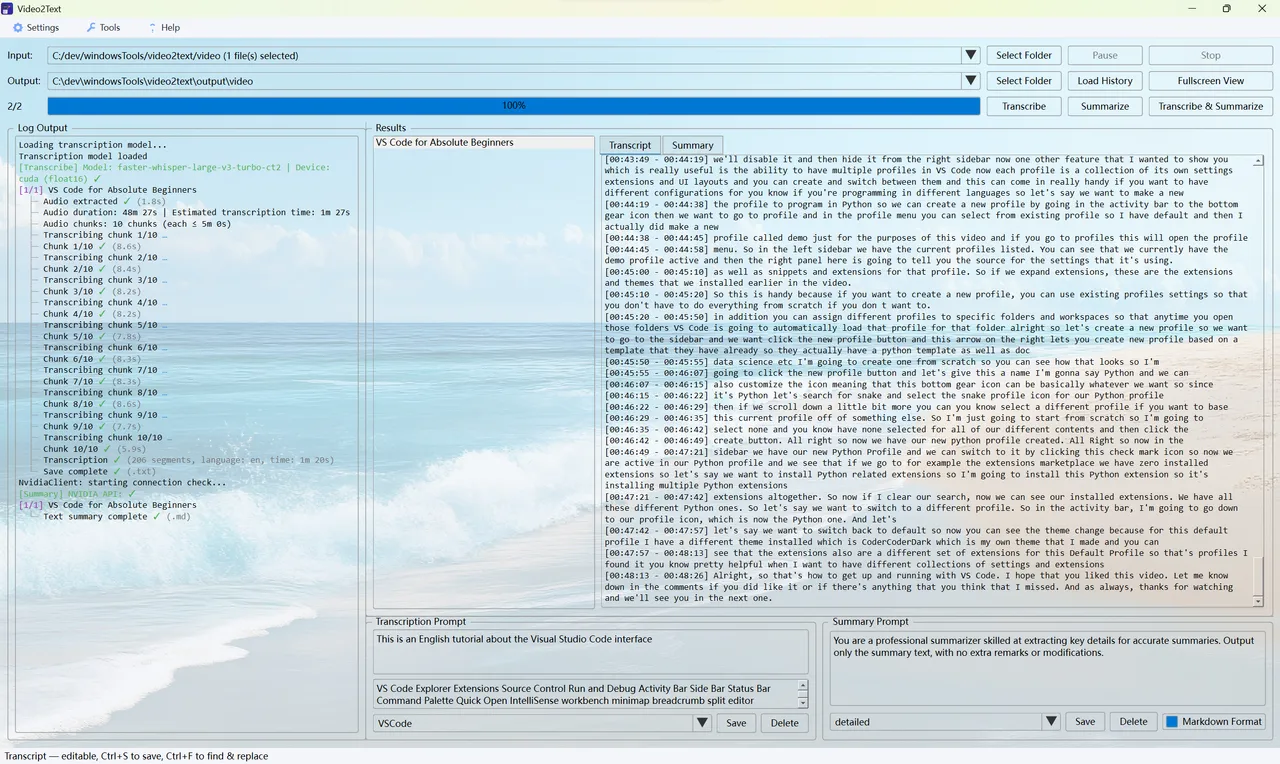
Transcription result
The transcription completes and the result is shown in the interface.
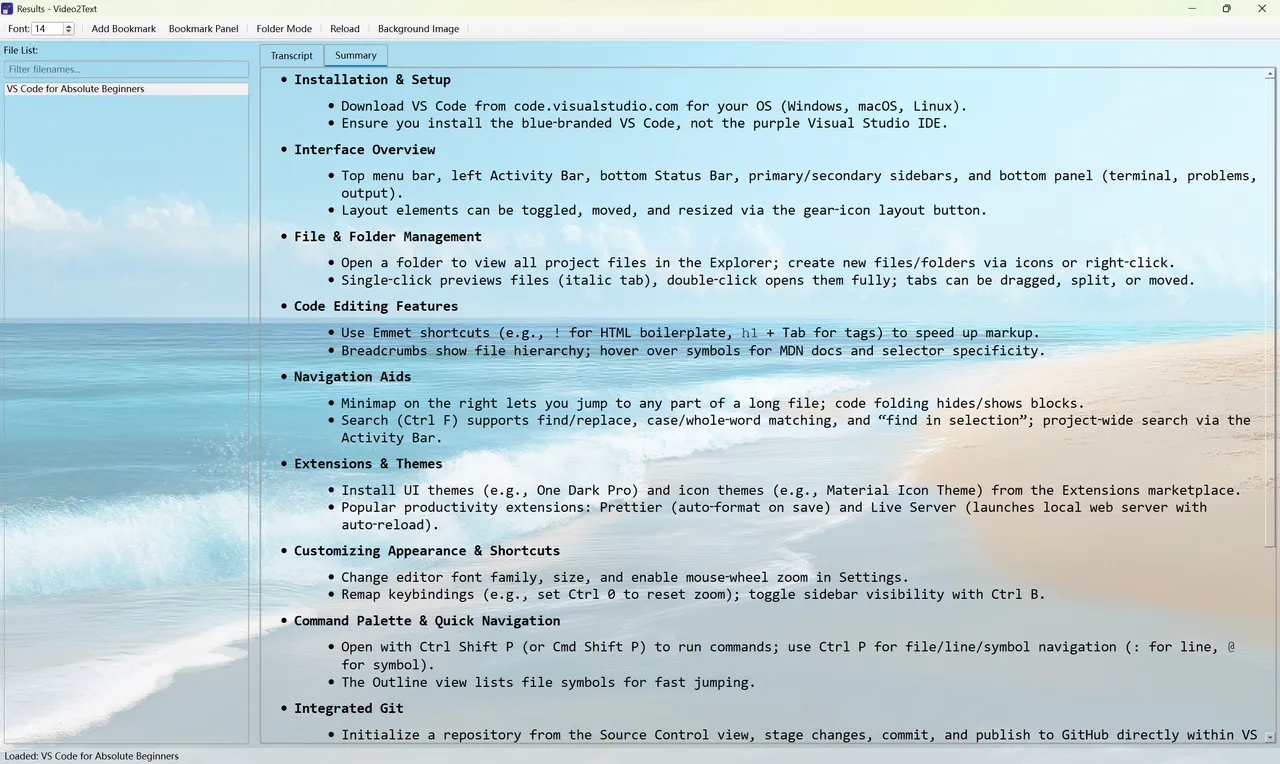
Summary result
The summary is generated successfully and displayed alongside the transcript.
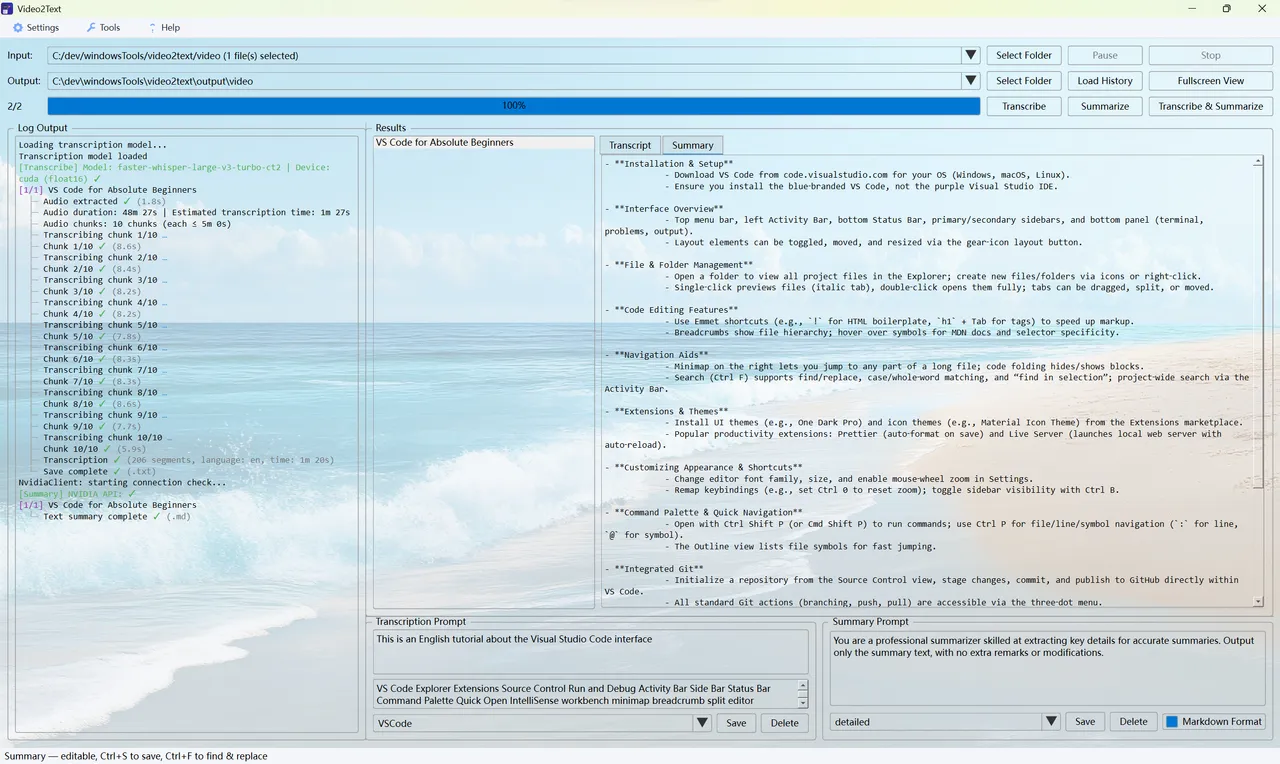
View the summary as Markdown
Switch to Markdown view to copy or export the summary in clean Markdown format.
Next steps
- Enable GPU acceleration for faster transcription.
- Connect a local model for summaries, or bring your own online model key.